Back to Blog
How to Connect Hostaway to Wander | Step-by-Step


Wander, the leading travel marketplace for exceptional vacation homes, is now seamlessly integrated with Hostaway. With one connection, hosts unlock both premium distribution and a best-in-class direct booking platform — built to outperform OTAs.
By connecting Hostaway to Wander, your listings, pricing, availability, photos, and reviews sync directly into the Wander platform while reservations flow back to Hostaway in real time.
Getting started
Step 1: Create your Wander account
Visit WanderOS and create your account.
• Enter your email address
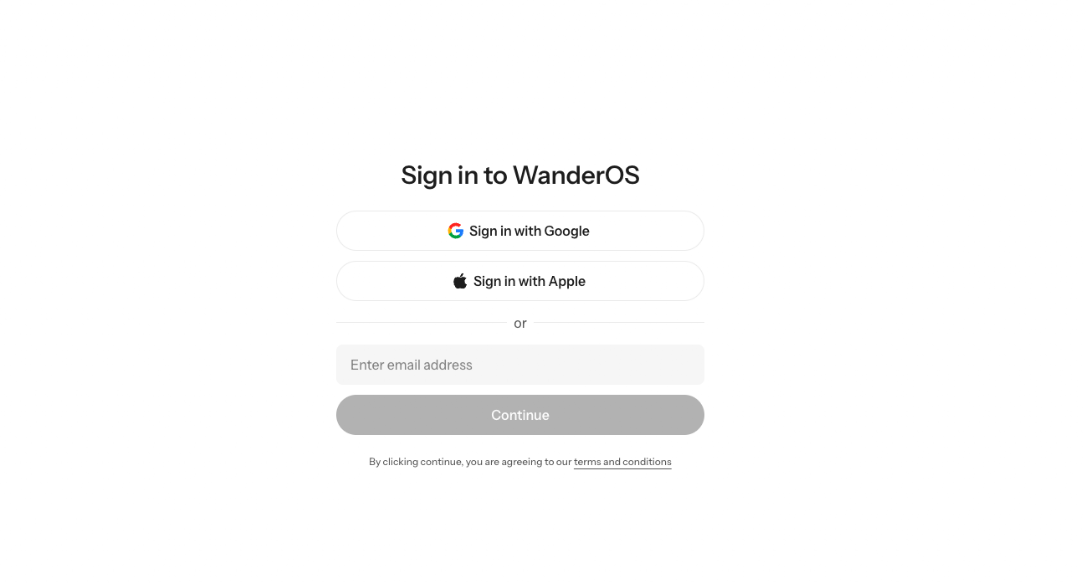
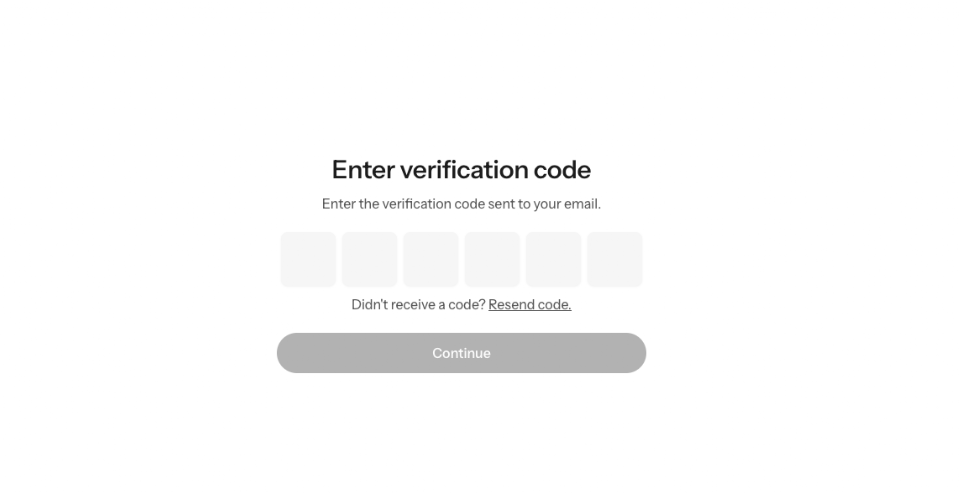
• Verify your account
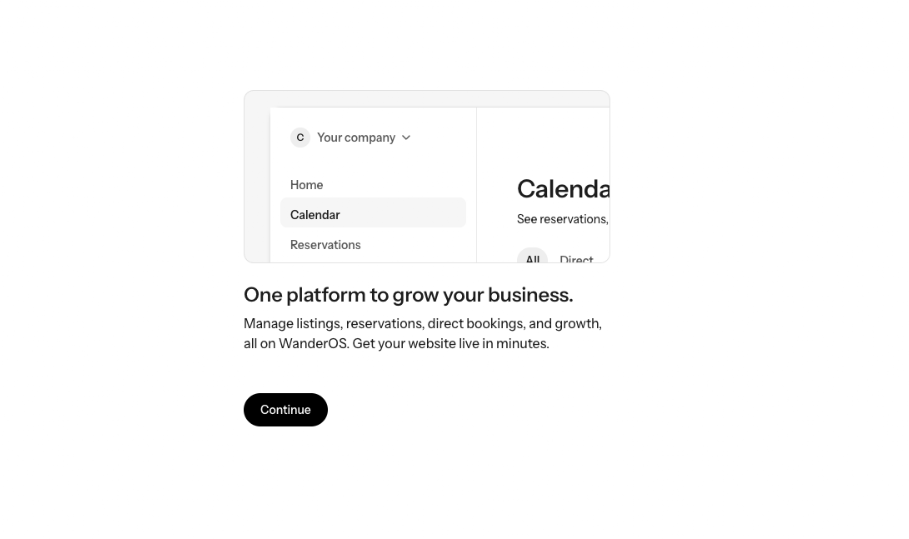
• Click Continue on the "One Platform To Grow Your Business" screen.
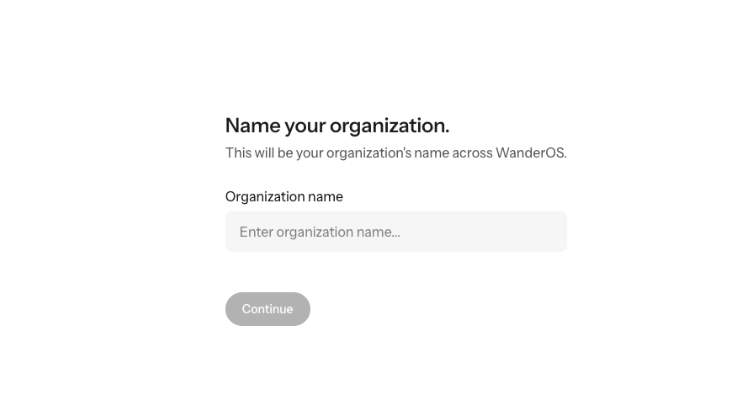
• Complete the onboarding flow and provide the required account information
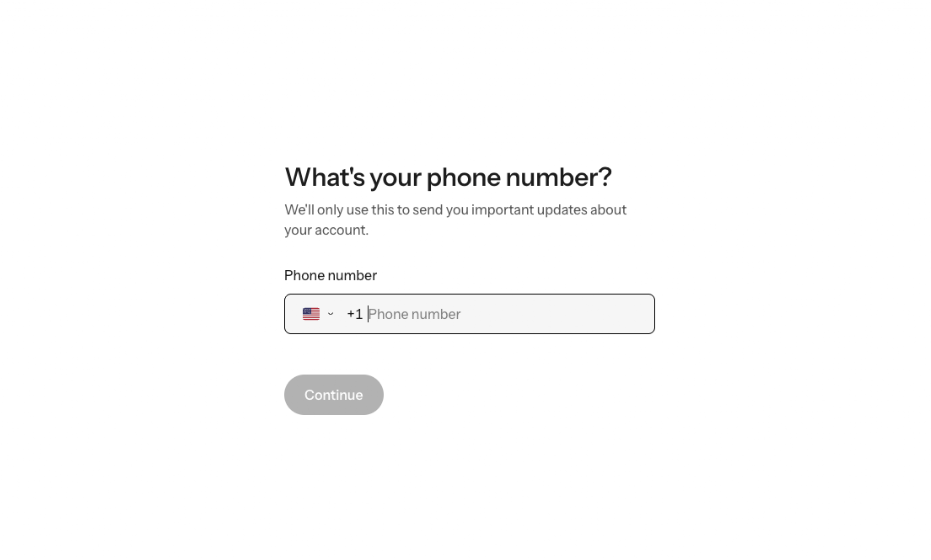
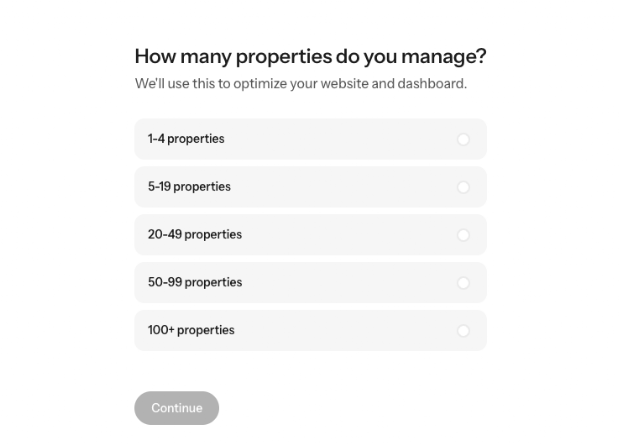
Step 2: Connect Hostaway
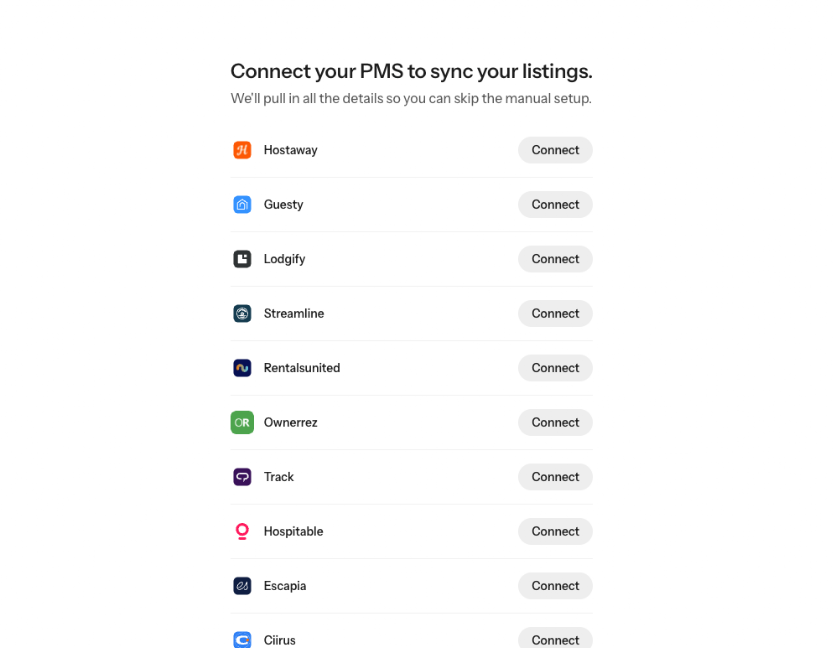
You will be redirected to the "Connect your PMS to sync your listings" screen.
Navigate to Hostaway and click Connect to begin setup.
Step 3: Retrieve your Hostaway API credentials
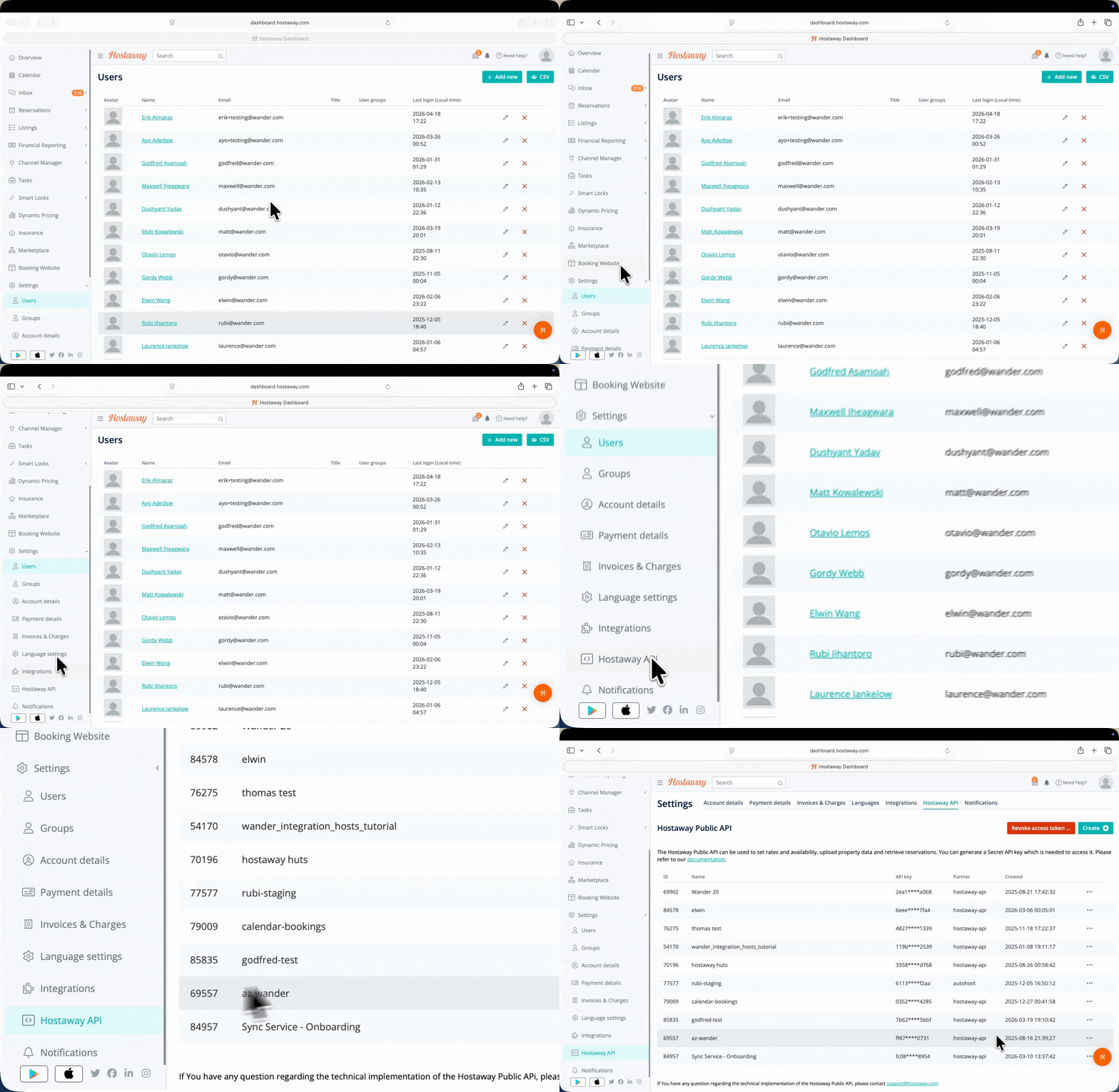
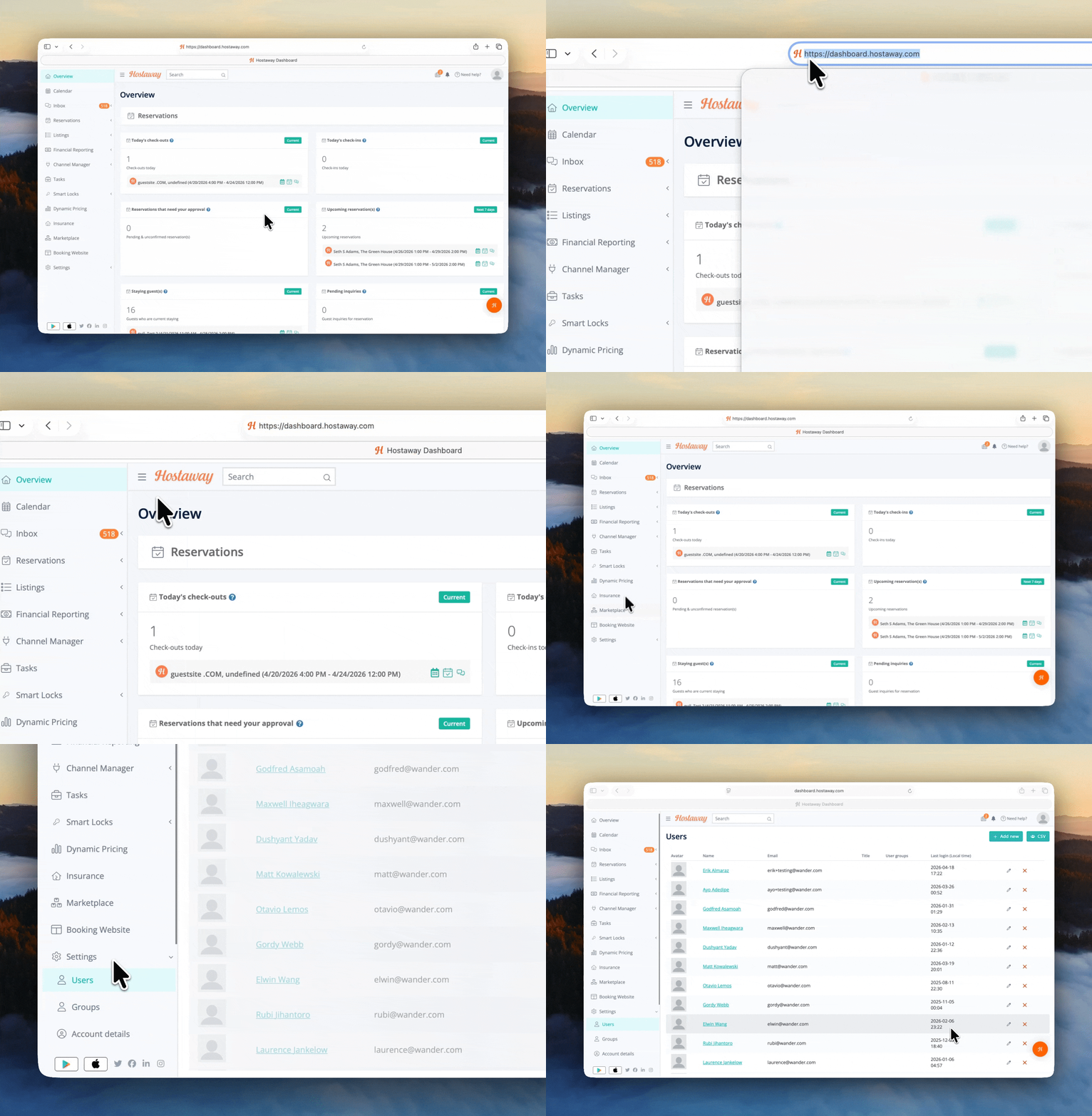
Access the Settings tab in Hostaway
Log in to Hostaway Dashboard.
From the left-hand navigation menu, click Settings (located below Booking Website) to expand additional configuration options.
Open Hostaway API settings
Within the expanded Settings menu, click Hostaway API.
This will open the API settings page where credentials can be created and managed.
Create API credentials
On the Hostaway API page, click Create to open a new API configuration form.
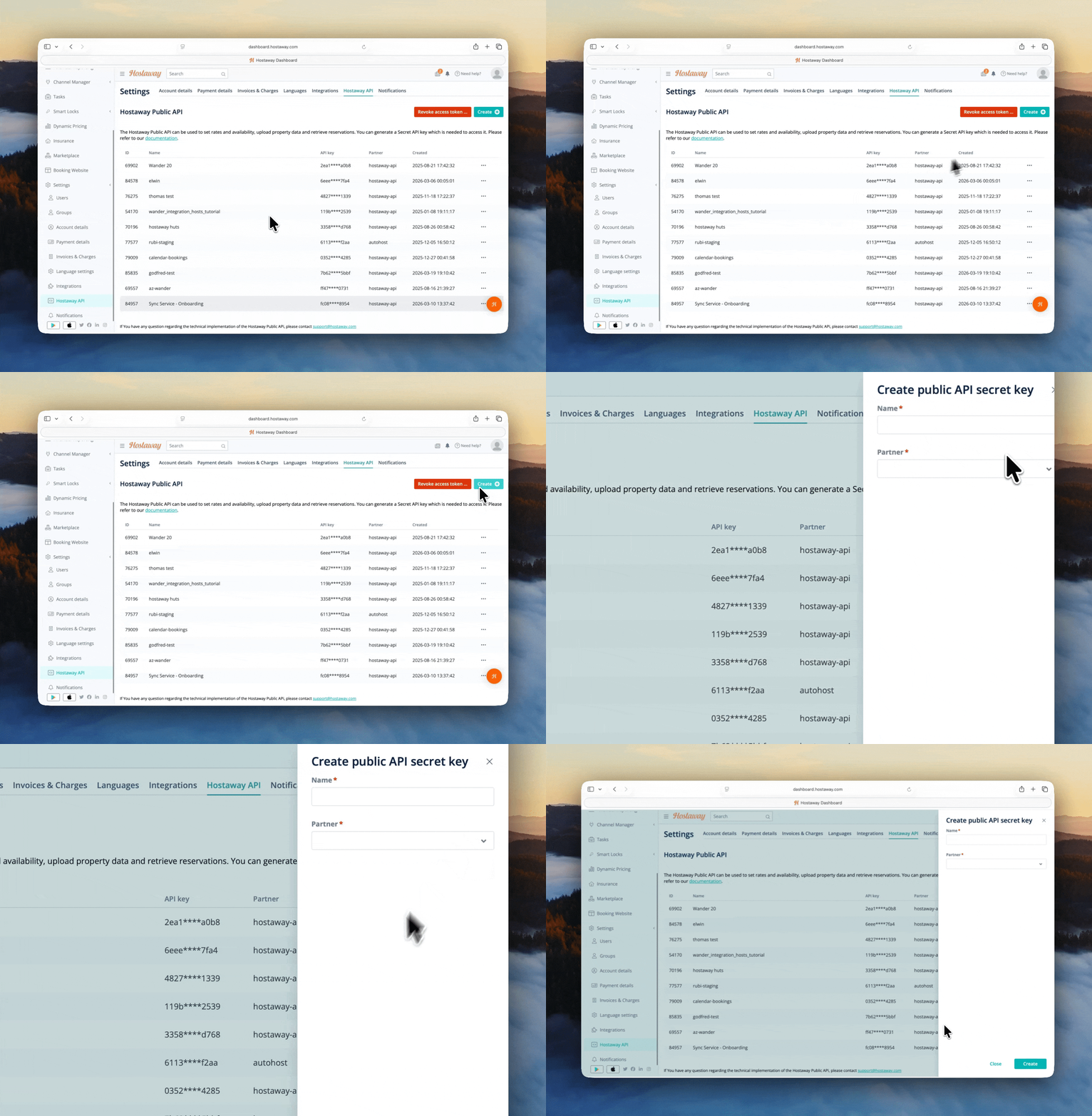
Configure API credentials
Complete the configuration using the following values:
• Name: Wander
• Partner: Hostaway Public API
Click Create.
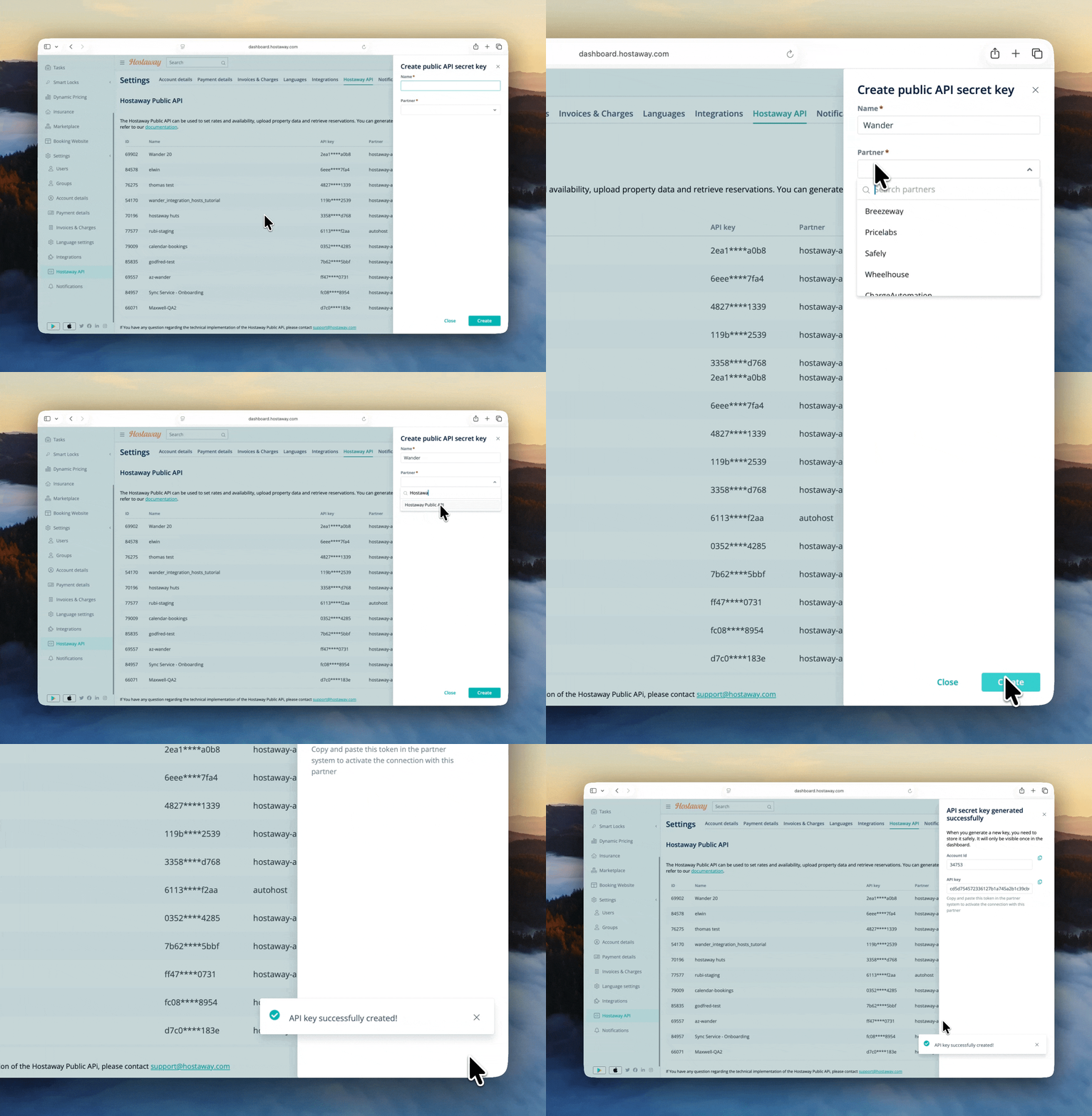
Retrieve your API credentials
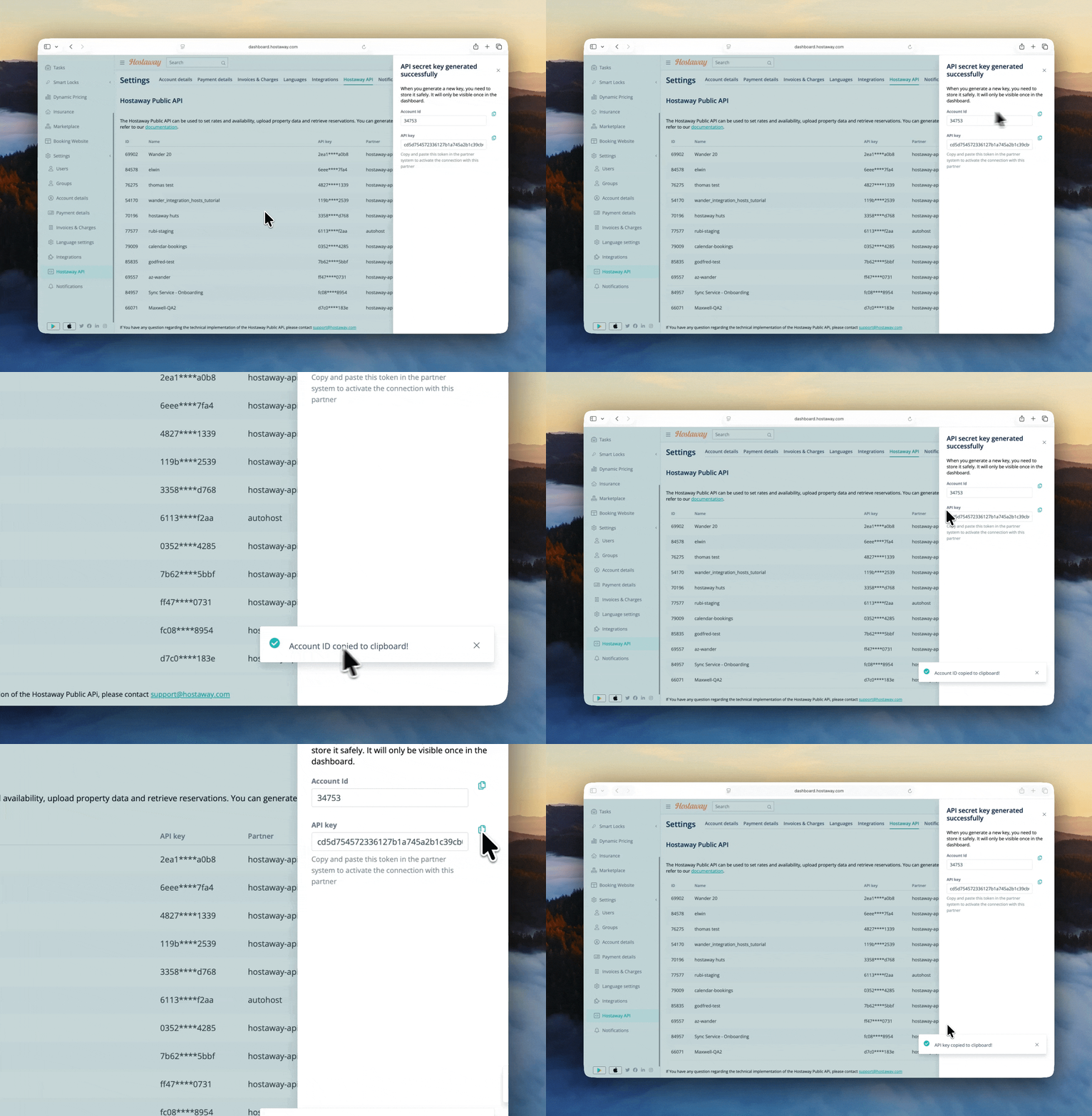
Once created, your:
Account ID
API Key
will be displayed.
Copy these credentials and enter them into your Wander onboarding flow.
Step 4: Import your listings
After your credentials are submitted, Wander will automatically begin importing your:
Listings
Photos
Pricing
Availability
Property details
Reviews
Reservations will continue syncing with Hostaway in real time, ensuring your PMS remains the operational source of truth.
Need help? We're here to assist
Simply click the "I need help" toggle within the onboarding flow.
Let us know where you need assistance and select Submit — our team will be in touch to walk you through the process.
Share it with your friends: